Business 101 class page · MR. D — Business Education — Room A112
Canva: Create Content
People Actually Notice
Turn customer research into a clear social post and a short marketing video. Learn the Canva workflow and the marketing reason behind each choice.
Design the communication
Canva is our common classroom tool for social graphics and short videos. Harry Guinness’s September 2026 Zapier review selects Canva for template-based social design and Adobe Express for another workflow. That is an independent reviewer’s assessment, not proof that every professional uses the same tool. Specialist designers and video editors also use tools such as Photoshop, Illustrator, and Premiere Pro.
Today’s workflow: audience → message → layout → post → video → review. Keep Canva open in another tab while you practice. The module itself needs no Google sign-in; Canva may require its own account.
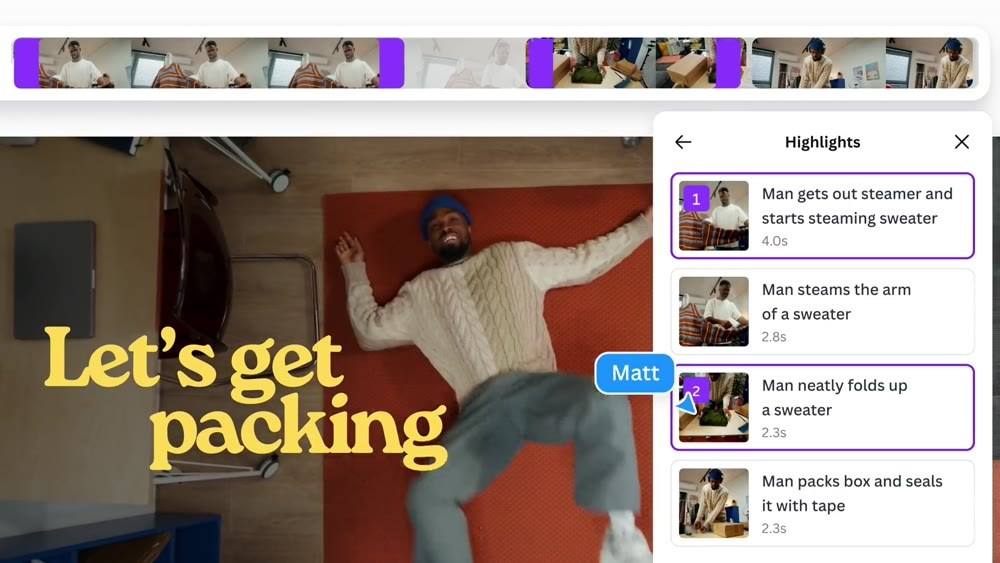
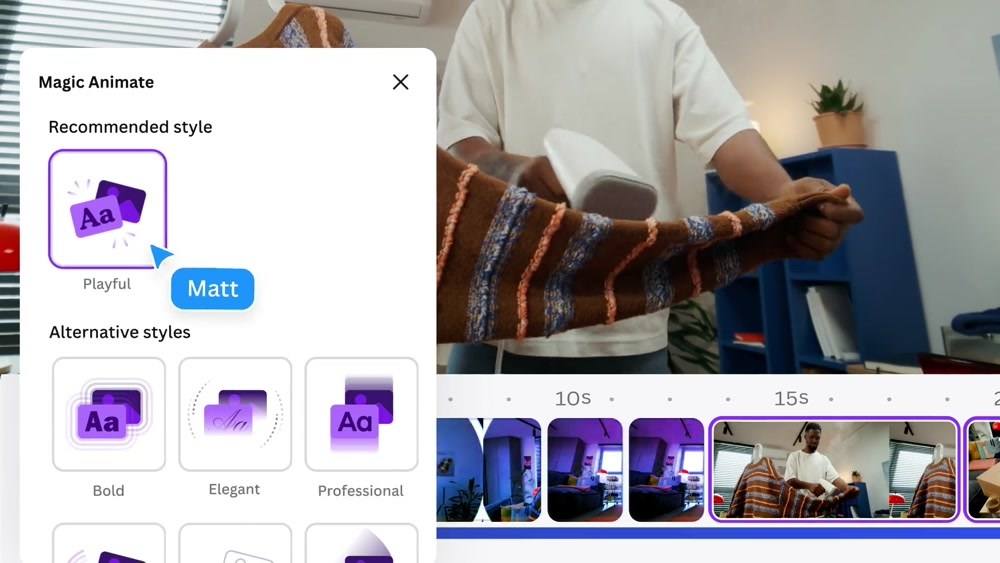
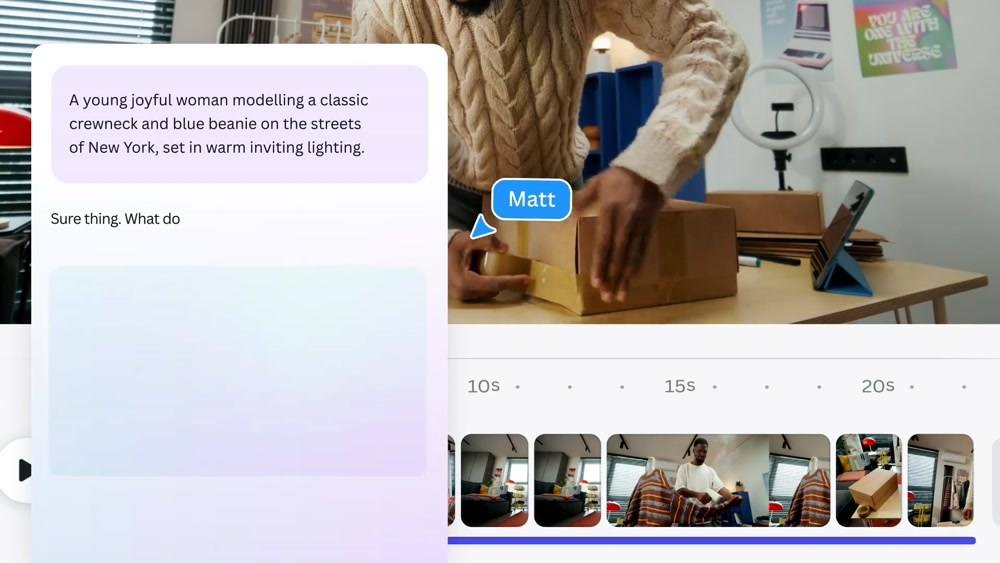
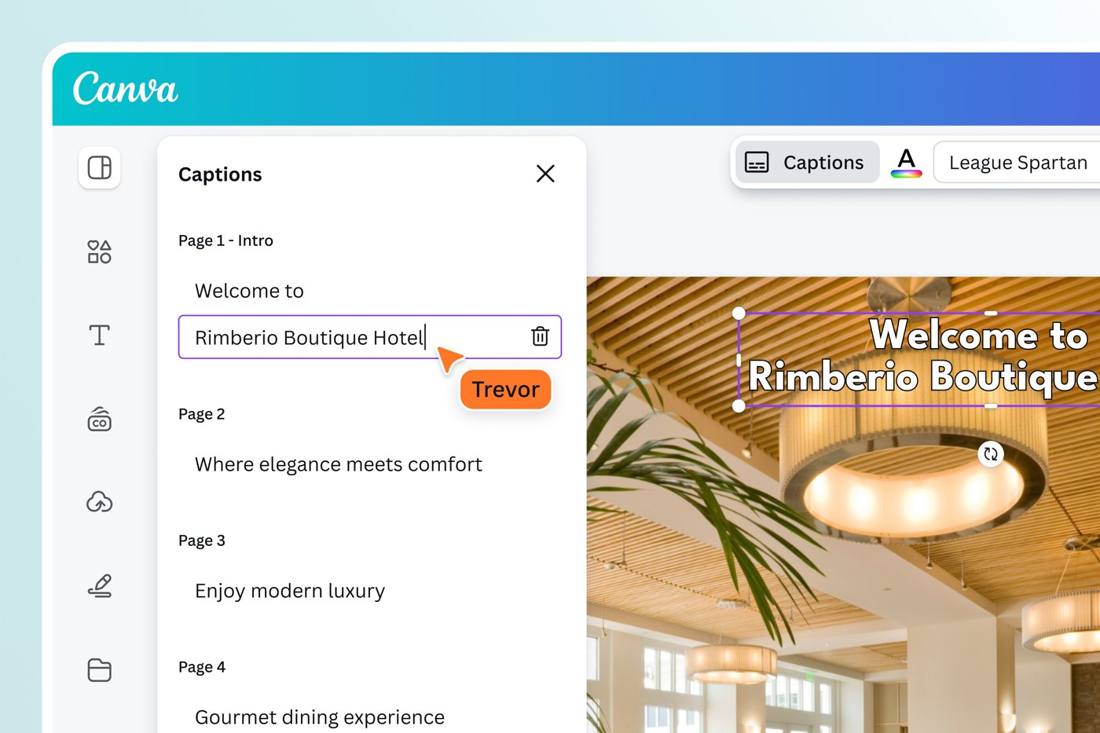
About the visuals: Real interface frames from Canva’s published video demonstration and official product images, reviewed October 4, 2026. They are not screenshots captured inside your account. Canva shows different layouts by device, plan, design type, and rollout. Use the named control and linked help when yours differs.
Free path: original uploads, basic shapes/text, manual cropping, a brand reference page, manual timing, and timed text captions. Use school-account features if available; purchasing an upgrade is not part of this assignment.
Student Start
Enter your name and block. Read each mini lesson before answering. You get two attempts: 1 point first try, 0.5 on the second.
Practice in Canva as you work through this module. Your final project will be a 1080 × 1080 Instagram square post using your own hand-drawn ice cream pint. Do not create the final ad yet. Full directions and a sample will appear after you complete the final questions. When your final ad is complete, save it as a PNG/JPG and upload it to the Marketing Project Gallery.
Business 101 Module 9 — Canva: Create Content People Actually Notice
Saving your score...
Final Canva Challenge Directions
These directions stay available after you submit Module 6. You can return to this section while building your final Canva ad.
SAMPLE ONLY — Do not copy Summit Scoops. Summit Scoops is only a model showing how information can be organized. Your final advertisement must use your own ice cream brand, your own hand-drawn pint, your own flavor, price or offer, date, hours, mock location, and call to action.
SUMMIT SCOOPS
WOW! AMAZING! NEW!
Ice cream ice cream ice cream
Cherry Mango Swirl • $5 • Friday Oct. 9 • 4–7 PM • mock pop-up
Check us out!!!
Your Final Ad
- Create a 1080 × 1080 Instagram square post.
- Use your own hand-drawn pint as the main product image.
- Create your own ice cream brand name and flavor.
- Include realistic classroom-simulation details: price or offer, date, hours, mock location, and one clear CTA.
- Use readable type, clear visual hierarchy, consistent branding, clean spacing, and purposeful image placement.
- Check it at phone size. A viewer should quickly understand what is being offered and what to do next.
Example improvement: Summit Scoops could replace “WOW! AMAZING! NEW!” with a clear main offer such as “Cherry Mango Swirl • $5,” followed by a specific action. Do not use the Summit Scoops details in your own ad.
Final checklist: your own brand · your own pint · clear flavor/offer · date · hours · mock location · one CTA · readable type · clear hierarchy · consistent branding · clean crop/layers · 1080 × 1080 export.
When finished: Export the ad as a PNG or JPG and upload it to the Marketing Project Gallery.
Sources and professional perspective
Checked October 4, 2026. Design habits in this lesson are classroom guidance, not quotations attributed to reviewers.
- Harry Guinness, Zapier: best free social design tools, September 8, 2026 — tested reviewer perspective supporting Canva for template-based design; alternatives fit other needs.
- Canva video editor — official editing features, free/paid comparison, and the demonstration used for eight real interface frames.
- Canva: group, layer, and align — current control names and workflow.
- Canva: generate and edit captions — supported paths, timing, editing, and MP4 export.
- Canva Design School: visual hierarchy · Using fonts — foundational design instruction.
- Official example images: Background Remover, Brand Kit, and Canva’s current home/video pages.
See more real Canva editing visuals